
The textile job portal offers a simple yet powerful dashboard to manage support tickets, take follow-ups, and track ticket status. In this tutorial, we will discuss in detail how you can check and track the ticket status on the support portal.
To check the status of your tickets, you must first log in to your account and navigate to the “tickets” page through the main menu.
If you are a new user, you will need to create an account before you can check the status of your tickets. For step-by-step instructions on creating an account, we recommend checking out our guide titled “How to Create an Account on the Support Portal“.
Create a new ticket
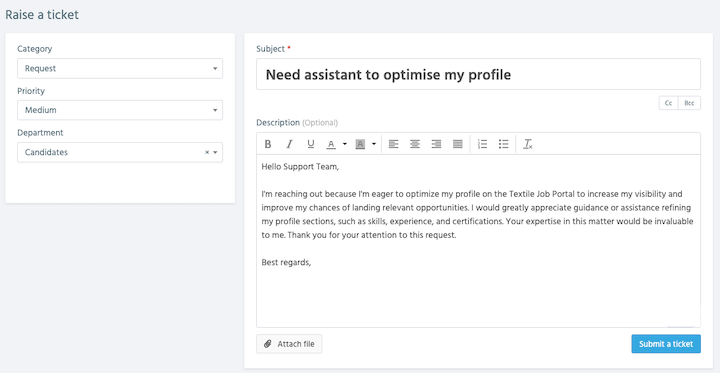
To understand the process easily let’s start with a new ticket. In the image below, I created a ticket on the textile job portal requesting assistance with profile optimization. I selected “request” as the category and “medium” as the priority before submitting the ticket.
After submitting your ticket to the support portal, you will receive a confirmation email containing your ticket number, category, priority, group, subject, and description.
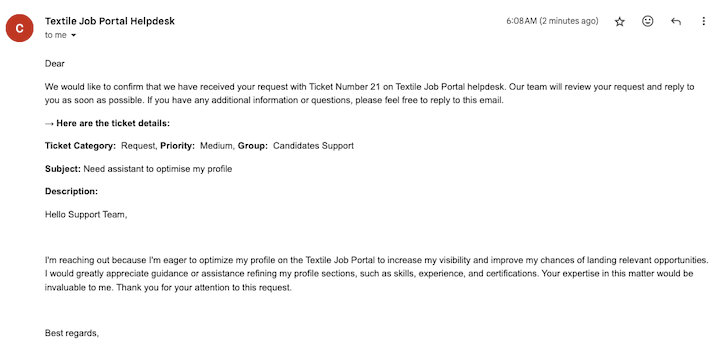
Ticket status unassigned / Open
To check the current status of your ticket, go to the all-ticket page. when you get the confirmation email your ticket status changes to “open” It means you raised the ticket and the support portal received the ticket.

Ticket status changed to pending
When the support portal reviews your ticket, the next step is to assign an agent who will work on your issue. You will receive an email from the assigned agent, as shown in the image below.
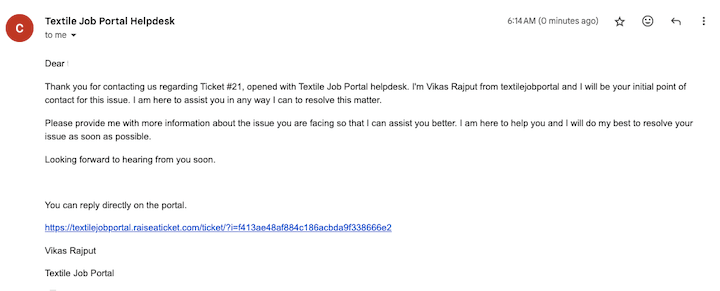
Once an agent has been assigned to your ticket, its status will change to “pending”. You will receive an email update confirming that your ticket is now in the queue and will be addressed in due course.
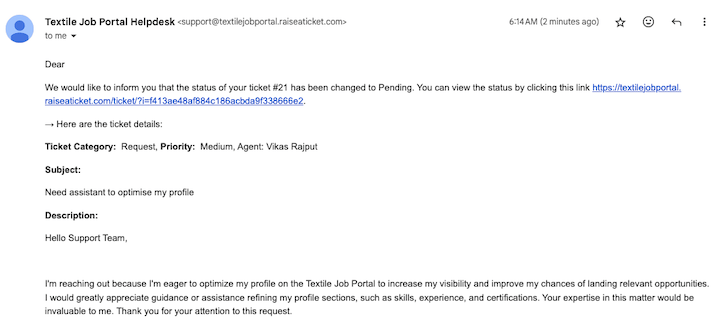
You can also check in your dashboard, that the status changed from new to pending.

Ticket status changed to In progress
When it’s turn for your ticket processing, the agent will change the status to “In Progress” which means that the agent is working on finding a solution for your issue. You will receive an email update confirming that your ticket is now in progress.

You can also check in your dashboard, that the status changed from pending to in progress.

In this stage, you communicate with agents through email regarding your issue. The agent may ask for additional information, request you to check again or ask for something else.
Ticket status changed to Resolved
When the agent successfully fixes and resolves an issue, the ticket status changes to “Resolved”. The user will receive an email notifying them of the status change.

Here, you can check in your dashboard, that the status changed from in progress to resolve.

Ticket status changed to Re-Open
After the agent resolves your issue, you have 48 hours to test it. If the problem persists, you can re-open the same ticket. To reopen a ticket, simply click on its status in your dashboard and select the option to reopen it.

When your ticket status changes to reopen, both you and the agent will be notified via email.

Our agent will check the status of your ticket and contact you again regarding your issue. You can provide as much information as possible to help the agent to better understand your issue.
Ticket status changed to closed
When your issue gets resolved and you are satisfied with the solution, you can inform the agent to close the ticket. Alternatively, you can also close the ticket from your dashboard and rate the support agent who assisted you.
This will help us monitor the performance of our team. You can rate the agent on a scale of 0 to 5 stars, with 0 being the lowest rating and 5 being the highest rating..

You also get an email confirmation that your ticket is closed.

I hope this guide finds you well. If you have any questions, please let us know in the comments below. We are happy to assist you.