The textile job portal offers a simple but powerful support system to assist clients in resolving their queries with ease. Even new users can effortlessly create and submit tickets.
In this tutorial, we will go through a detailed overview of the support portal dashboard and explain its functions.
Header Section
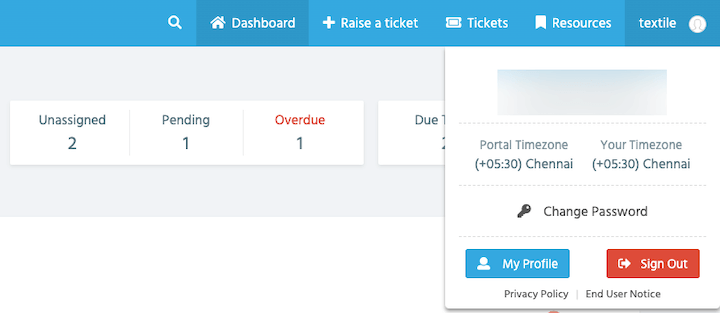
In the header section, users can navigate the main menu to perform various actions such as going to the dashboard, raising a new ticket, managing tickets, and accessing the profile section. Users can also search for tickets by clicking on the search icon.

On the top right corner of the header section, you will find the profile option. Clicking on it will take you to your profile where you can edit your information, change your logo, adjust your timezone, add an email signature, and more. You also have the option to change the password and delete your profile if needed.
Ticket Status
In the following section, you can check the status of your tickets. You can see the number of tickets you have raised, the number of tickets that the support team has resolved, and the number of tickets that are still unresolved.
Additionally, you can view unassigned tickets, pending tickets, and overdue tickets. You will also be able to see the due date of each ticket and the number of tickets that are due tomorrow.

Raised and Solved Tickets
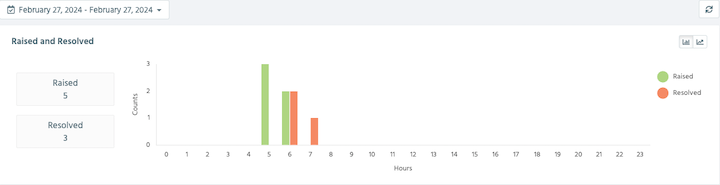
You can view a chart that shows the number of tickets you raised and how many have been resolved to date. You can adjust the date range to see the chart for a specific period.
Ticket Volume
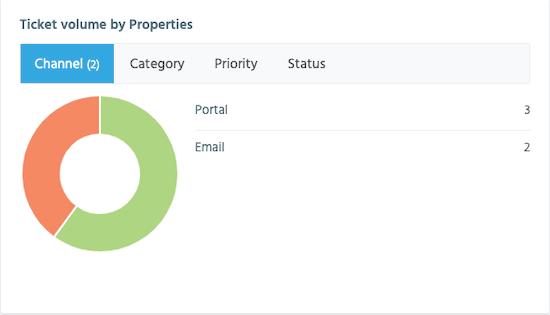
This section helps you categorize your tickets to track them in more detail. Currently, you can check your ticket volume as follows:
Channel
It helps users to understand the number of tickets created through different channels. For example, in the below infographic, we created two tickets through the web portal and two through the email portal.
Category
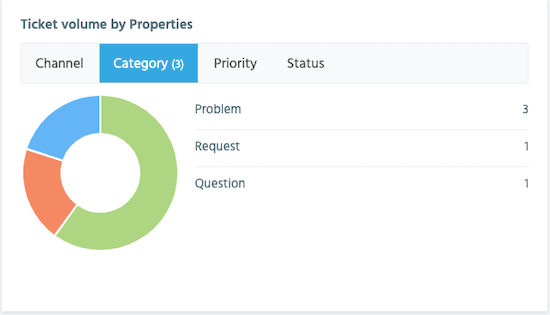
At the textile job portal helpdesk, there are four categories for the tickets you submit. These categories are incident, problem, request, and question. You can easily view your submitted tickets by sorting them into their respective categories.
Priority
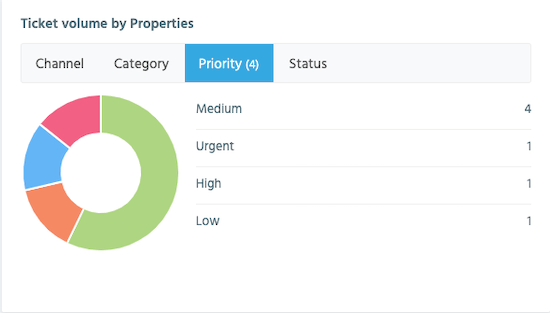
When creating a ticket for a problem, it’s important to set its priority based on the severity of the issue. On the Textile job portal, you can select the priority level such as low, high, medium, and urgent while submitting the ticket. Additionally, you can easily view your submitted tickets by sorting them into their respective categories.
Status
In this section, you can view your tickets based on their current status. For example, you can see how many tickets have been resolved, the total number of tickets raised, the number of unresolved tickets, and the number of pending tickets.

Recent Activities
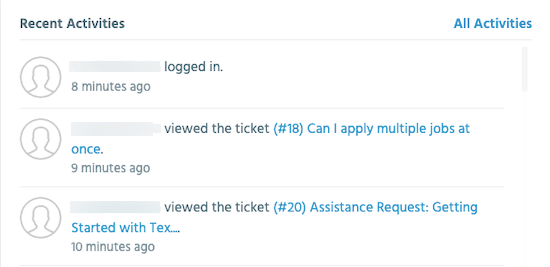
In this section, you can keep track of all your recent activities, such as logging into your account, viewing tickets, creating tickets, responding to tickets, changing ticket status, etc.