
On the Textile Job Portal Support System, users can easily access the dashboard to view, edit, delete, close, and manage all their tickets. In this tutorial, we will go through the step-by-step guide on how to manage your tickets on the Textile Job Portal Support Channel.
To gain full access to the dashboard, where you can create tickets, manage them, view reports, and update your profile, you need to create an account. If you don’t have an account on the Textile Job Portal support channel, we recommend checking out this article on “How to Create an Account on the Support Channel.”
How to manage support tickets
Users who already have an account can manage their tickets by following the given steps.
- Go to the textile job portal support channel by clicking on this link (click here to visit), or you can visit by clicking on the “Manage Tickets” option in the footer section of the textile job portal.

- After clicking on the link you will be reached at the support portal home page.
- Go to the main menu in the header section and click on the Login option.

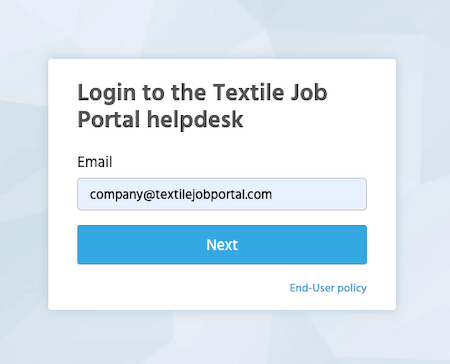
- A new login popup window will open, enter your email address and click on the next option.
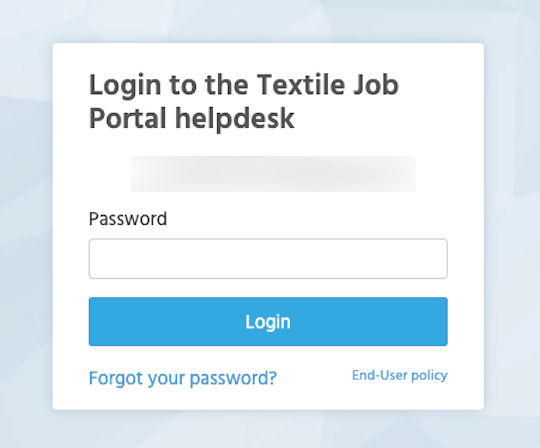
- Enter your password, and click on the login button.
- You will be successfully redirected to the support portal homepage.
- Go to the main menu in the header section and click on the “Tickets” option.
- Once you click on the tickets option you will be redirected to the all tickets page.

Manage Tickets
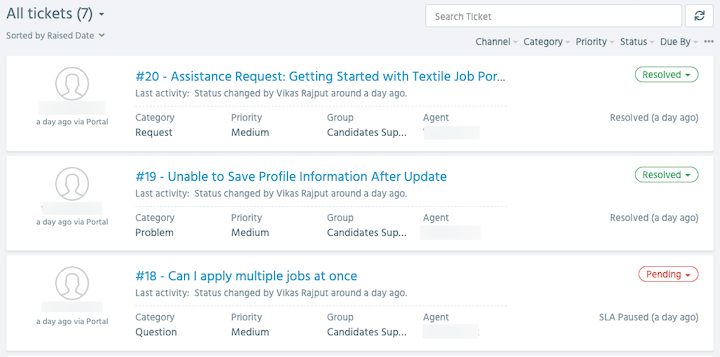
On this page, you can view all the tickets that you have raised. Each ticket includes a title, description, category, priority, and ticket group, as well as the name of the agent assigned to your ticket. If you need to find a specific ticket quickly, you can use the search bar at the top of the page to search by title or keyword.
Filter Tickets by Current Status
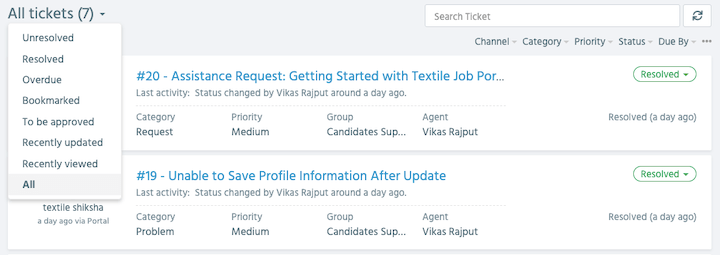
Users have the option to filter the tickets based on their status, as shown in the image below. The total number of tickets is displayed in the top left corner, and you can click on it to access a new list. In this list, you can select the option you want and view the current status of the tickets.
For example, you can filter the tickets based on whether they are unresolved, resolved, overdue, bookmarked, to be approved, recently updated, recently viewed, or all.
Re-Open / Closed Tickets
On the right side, you have an option to close your ticket on your end. However, if your problem is not fully resolved by the agent, you can reopen the ticket by clicking on the “Re-opened” option.

Bookmark, Print, Export, or Delete Tickets
Users can bookmark high-priority tickets to filter and track them easily. Additionally, they can print, export, and delete the tickets by following the given steps.
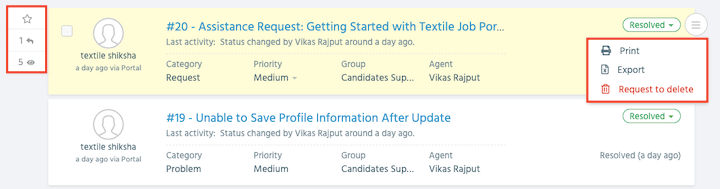
To save a ticket as a bookmark, hover over the ticket card and click on the first star icon on the left side. You can also see the total replies and views on the ticket.
On the right side, you can print the ticket, export it to a .xls file, or delete it. If you choose to delete a ticket, it will be moved to the trash folder for 30 days before being permanently deleted. If you wish to have your ticket deleted instantly, you can request assistance from a support agent.
Change Ticket Priority
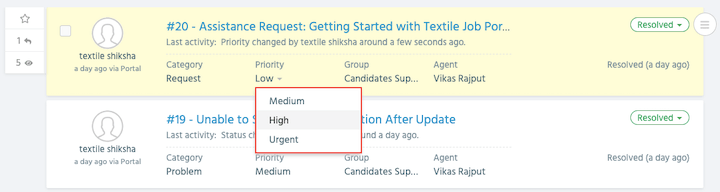
When a user creates a ticket, they have the option to select the priority level of the ticket. The priority level depends on the severity of the problem, so users can choose accordingly. However, it is important to note that users can also change the priority level of a ticket after it has been raised.
To do this, users need to go to the “All Tickets” section, select the ticket they want to change, and click on the priority option. A dropdown menu will appear, allowing users to select a new priority level, as shown in the image below.
I hope this guide finds you well. If you have any questions, please let us know in the comments below. We are happy to assist you.