
The textile job portal provides users with two types of support: web portal support and email support. If you choose email support, you can create and raise tickets via email explaining your concern in detail and receive a reply via email. You don’t need to create an account on the web portal for this.
On the other hand, if you want more control over your support experience, including managing tickets, checking status, tracking progress, accessing reports, and changing ticket statuses, you should opt for web portal support.
This tutorial explains how to submit support tickets via email. It is divided into two sections: one for employers or companies and the other for job seekers or candidates.
How employers can raise a ticket via email
To raise a ticket by email, follow the steps given below.
- Open your email application or web app (i.e. Gmail, Outlook, Yahoo, etc).
- In the “To” section, enter the email addresses “employers@textilejobportal.raiseaticket.com” and “company@textilejobportal.com“.
- Enter a descriptive title for your issue in the subject field.
- Provide as much detail as possible about your problem or the assistance you require.
- If applicable, attach any relevant media files or links.
- Review your email and click the “Send” button.
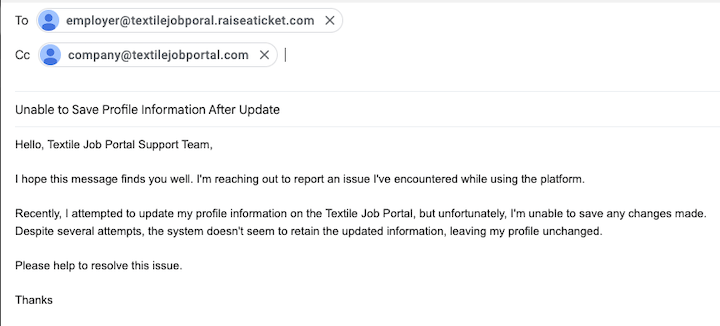
- After successfully submitting a ticket, you will receive a confirmation email indicating that your ticket has been added to the portal. Please see the image below for reference.
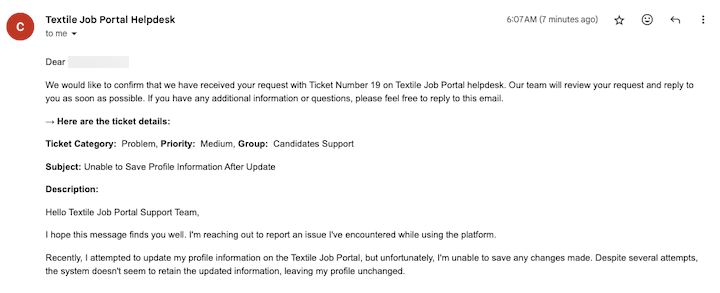
How candidates can raise a ticket via email
To raise a ticket by email, follow the steps given below.
- Open your email application or web app (i.e. Gmail, Outlook, Yahoo, etc).
- In the “To” section, enter the email addresses “candidates@textilejobportal.raiseaticket.com” and “company@textilejobportal.com“.
- Enter a descriptive title for your issue in the subject field.
- Provide as much detail as possible about your problem or the assistance you require.
- If applicable, attach any relevant media files or links.
- Review your email and click the “Send” button.
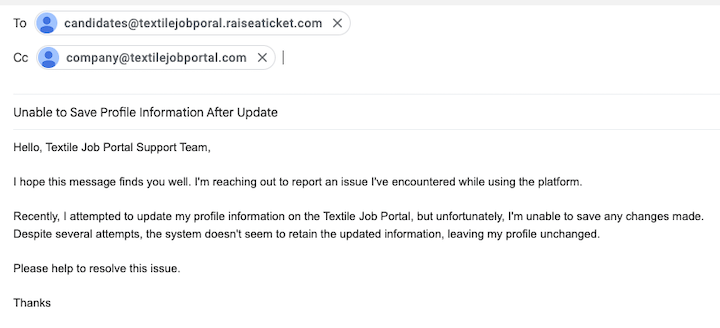
- After successfully submitting a ticket, you will receive a confirmation email indicating that your ticket has been added to the portal. Please see the image below for reference.
I hope this guide finds you well. If you have any questions, please leave them in the comment section. We are happy to help you.