
The Textile Job portal provides personalized assistance to all its users through a comprehensive support system that is based on a ticketing system.
After creating an account, users can access a dedicated dashboard where they can create and manage support tickets with ease. We aim to offer quick and efficient support services to ensure that our esteemed users are satisfied.
How to create a support account
To create an account on the support portal, follow the steps given below.
- Go to the textile job portal website, and scroll down to the footer section.
- You can see the “Help Centre” section.
- Click on the “Create Ticket” option.
In addition to clicking here, users can also visit the textile job portal support system by using this link to access the support portal. Click here

After clicking on the “create ticket” option or clicking on the given link, you will be taken to the support portal page. From there, you can either log in to your account, create a new account, or submit a new ticket without logging in.
In this tutorial, we’ll go over the process of creating a new account on the support portal.
- On the homepage, go to the right-side header menu, you will find three options: login, sign up, and create a ticket.
- Click on the signup option.

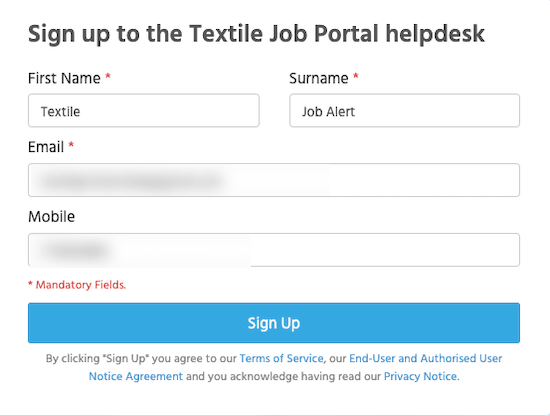
- A new popup window will open as shown in the below image.
- Here, you have to enter basic information such as your first name, last name, email address, and mobile number.
- After entering all the information, click on the “Sign Up” option.
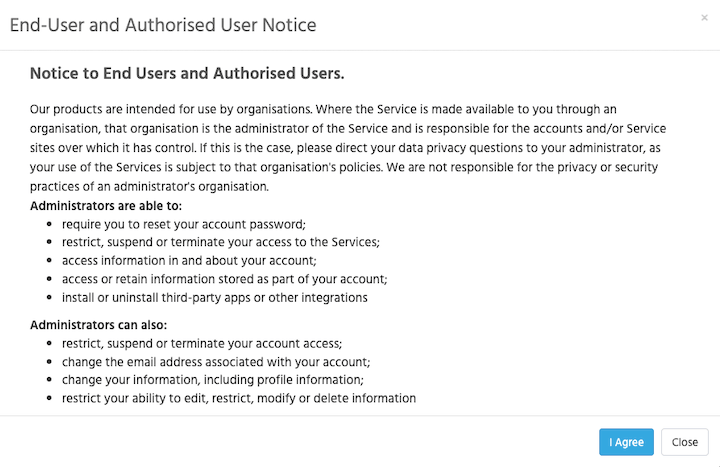
When you click the signup button, a new window will open containing the “End User and Authorized User Notice”. Please read this notice carefully and click on “I agree” if you accept the terms.
This notice informs you that if you are using a service provided by a company through an organization such as your workplace, the organization is responsible for managing your account.
Any questions related to data privacy should be directed to your organization, as they are responsible for handling privacy and security. The company providing the service is not responsible for the way your organization manages your privacy or security.
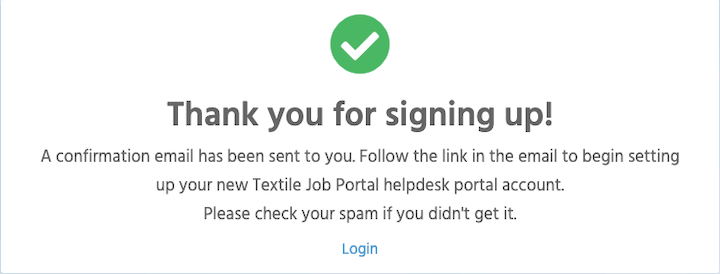
- A confirmation email has been sent to you. Check your spam folder if you don’t receive it in your primary or update folder.
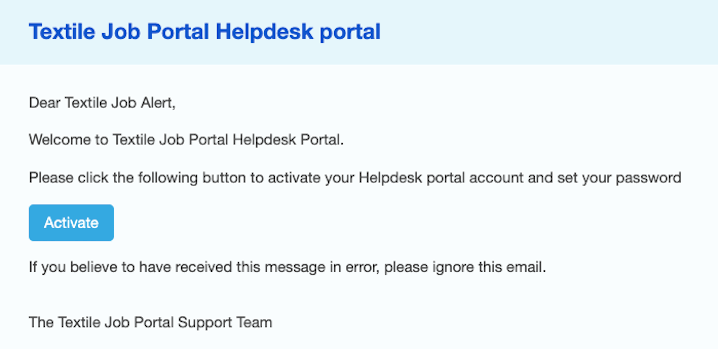
- Click on the “Activate” button.
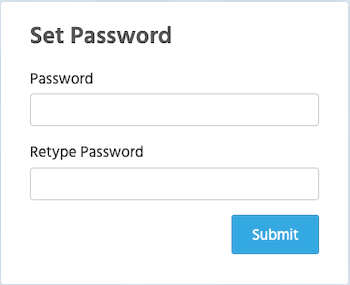
- Set your password (Users are advised to create a strong password and mix uppercase, and lowercase letters, numbers, and symbols. minimum 8+ characters, avoid common patterns and personal info).
- Retype password.
- Click on the “Submit” button.
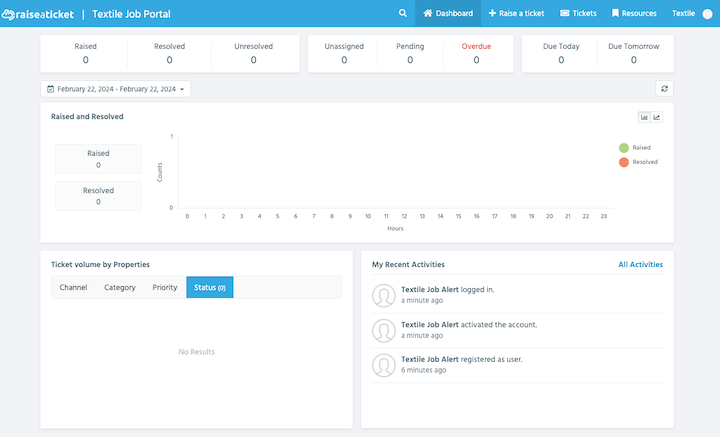
Congratulations! Your account on the Textile Job Portal Support System has been created successfully. You will be redirected to the support dashboard where you can manage tickets, create new ones, and follow up on related tasks.
To create a new ticket we suggest checking this tutorial “How to create and submit support tickets on the support portal”.
I hope this tutorial finds you well. If you have any questions, please get in touch with us at company@textilejobportal.com. We are happy to help you.