
Textile Job Portal offers each employer a personalized dashboard that enables them to manage all their activities efficiently. This ensures companies have a seamless and convenient experience throughout their hiring journey.
With this dashboard, the employer can easily update their profile, manage all published jobs, publish new jobs, view and manage the list of applicants they applied for, schedule meetings, exchange messages, adjust their employer settings & preferences, and efficiently perform other relevant tasks.
Let us get started with knowing about each feature in detail.
Dashboard
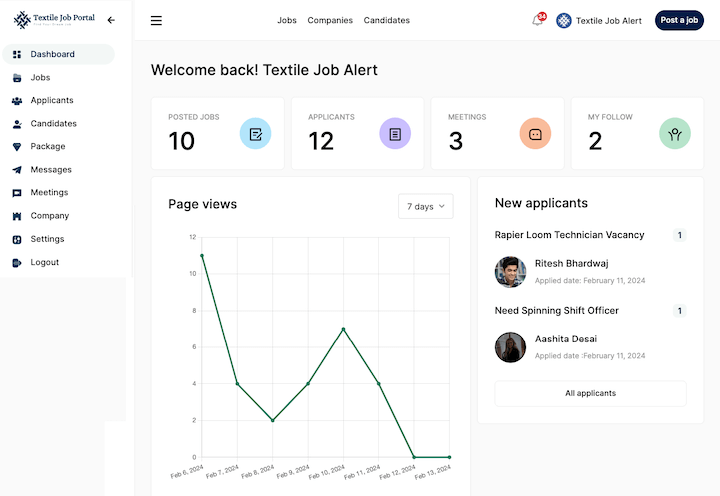
The dashboard has four sections: main menu, quick links, page view, and new applicants.
Main Menu: The menu allows users to navigate between pages for profile updates easily and manage listing jobs, applicants, followings, followers, invites, meetings, messages, and settings.
Quick Links: The Quick Links section makes it easy to navigate to important pages such as posted jobs, applicants, meetings, and followers sections.
Page View: The page View feature makes tracking your profile growth easy. You can filter views by the last 7, 15, or 30 days.
New Applicants: In the right sidebar, employers can find a list of applicants who have recently applied for their jobs. Click on the applicant’s name to view more information.
Jobs
In this section, the employer can manage all the published jobs, such as edit, pause, mark as complete, and delete the jobs. You can find the listed jobs by job title or enter a keyword in the search bar, then press enter.
There are five essential options you should be aware of. Firstly, the job title along with the department, job type, and location. Secondly, the number of applicants who have applied for the job.
Thirdly, the job status can be live, paused or expired. Fourthly, the date when the job was posted. And lastly, the job expiry date.

Applicants
The Applicants section is helpful for employers to manage all of the job applicants they receive from a single dashboard. From here, you can easily view a list of all the candidates who have applied for your job post and choose to either approve or reject them.
Additionally, you can send messages to applicants, download their resumes, and even schedule meetings with them directly from this section.
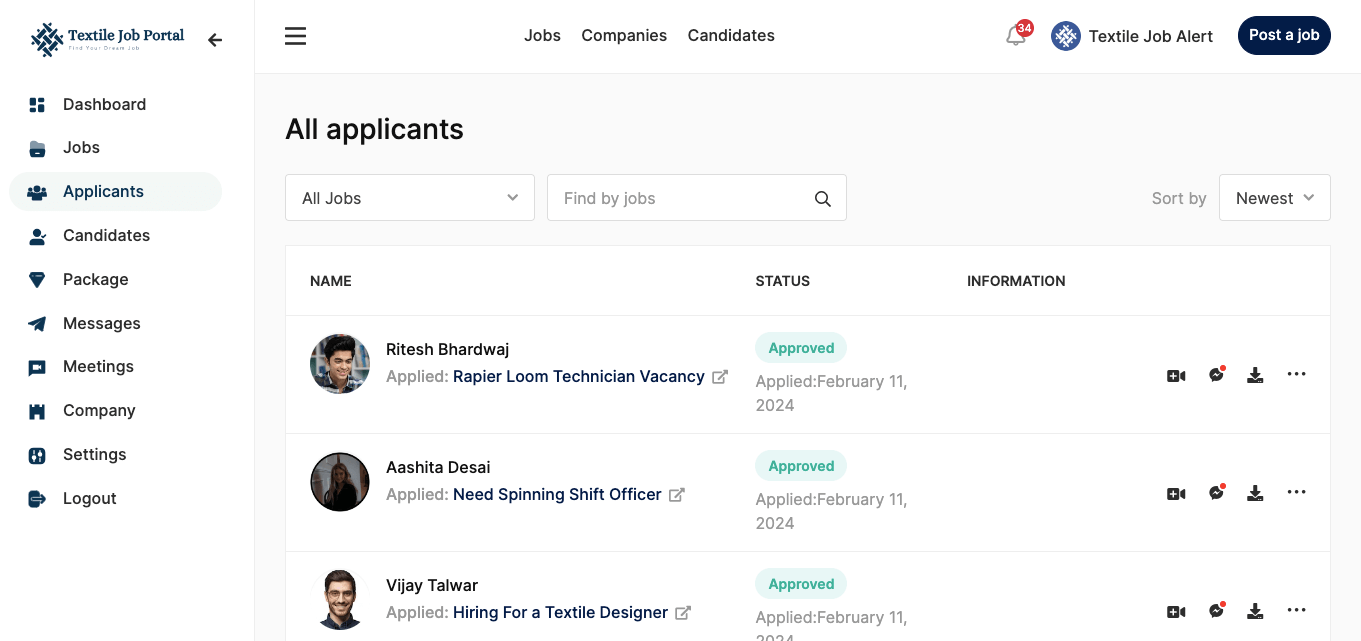
You have two options to find an application that applied for a particular job post. Firstly, click the “All Jobs” option, select the desired post, and press enter. Alternatively, enter the job title or keyword in the search bar.
Candidates
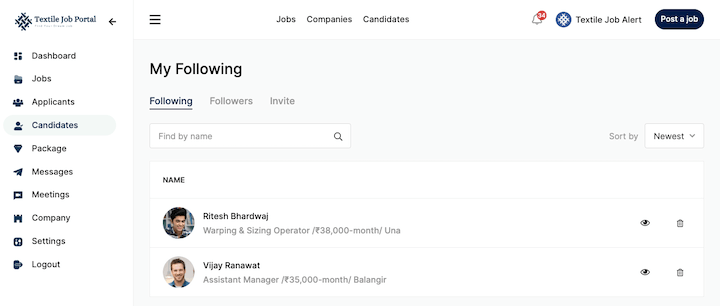
The candidate section allows employers to manage all candidates they follow or have sent invitations to. Employers can view a candidate’s profile or remove a follow or invitation.
You can use the search bar to find any candidate from your following list and sort the list using the filter option. You can see a list of users who follow you in the Followers tab. You can view a follower’s profile by clicking the eye icon or remove them by clicking the delete icon.
Messages
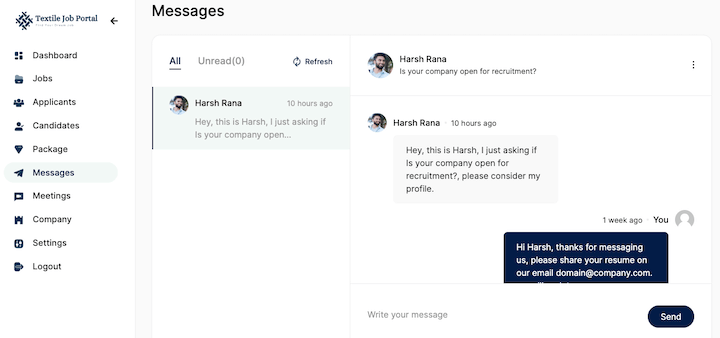
The Messages section allows employees to communicate with candidates during pre-hiring to gather more information about applicants.
In this section, you will find a list of all the candidates you’ve communicated with and the latest and unread messages in their respective tabs.
To send a message, select the applicant, type your message in the chat box and click send. You can delete the chat by clicking the three dots and selecting delete.
Meetings
Employers can manage all upcoming and completed interview meetings from this section. You can edit or delete meetings from here.
To schedule a meeting, you need to go to the applicant section. Select the applicant you want to schedule the meeting with and click on the meeting icon.
You will then need to provide basic information such as the meeting time, duration, date, and a message for the applicant. After filling out the required information, click the “Send Meeting” button.

Companies
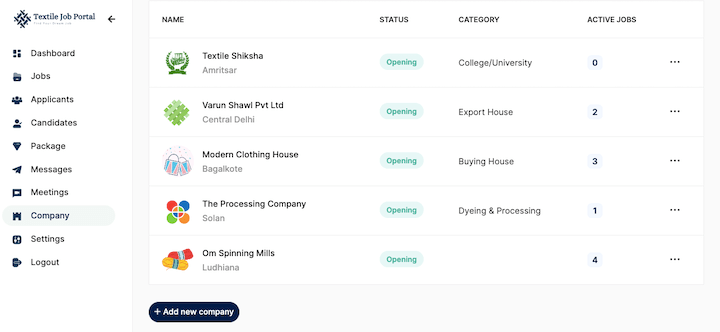
Employers must register their company to post a job on the textile job portal. The portal provides a dedicated section for managing all registered companies or registering a new one.
After registering, you will see your company in the list in the image below, along with the company name, location, status, category, and active jobs.
You can modify or delete the company by selecting the three-dot icon and choosing the desired action.
Setting
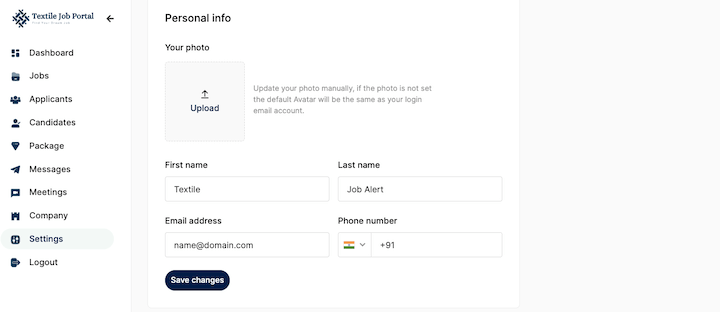
Users can update their profile in the settings (company logo, first name, last name, email address, and phone number), change their password or delete their profile.
Upload your company logo, enter the first name, last name, email address, and none number, then click the save changes button.
To change your password, scroll down the page, enter the old password, choose the new one, confirm the new one, and click the change password button.
The last is to delete or deactivate an account; scroll down the page, and you will find an option to “Deactivate Account”. Click on it, and a new popup window will open—press yes. Your account was successfully deleted.
Before deleting your account, please note that this action cannot be undone, and all data will be permanently lost. Please be cautious before proceeding.