In the settings & preferences section, users can update their profiles, change passwords, and delete their accounts.
Update Profile Information
To update the profile information, follow the given steps.
- Login to your account and go to the dashboard.
- On the left sidebar, click on the “setting” tab.

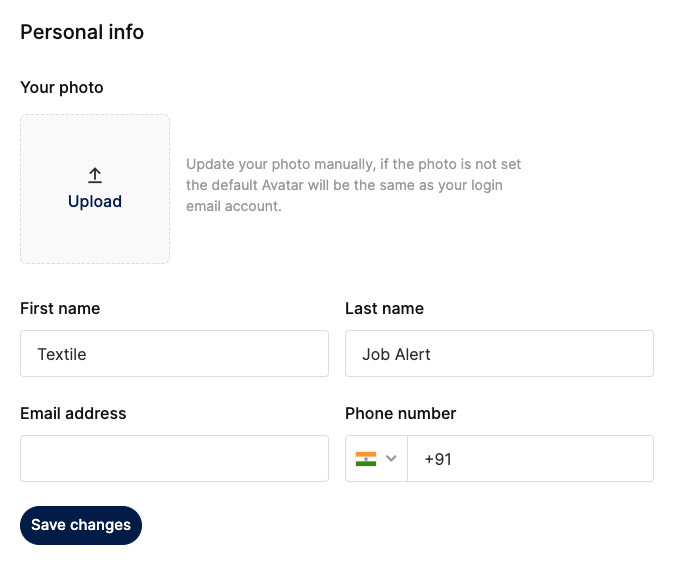
- You will reach the user settings & preferences page. Here you can edit or update personal information.
- First of all, upload your profile image. (Please note the logo image size should be less than 100kb. If your image is larger than 100kb you can compress it with any image compression tool.)
- Enter your first name, last name, email address, and contact number.
- Click on save changes.
Change Password
- To change your password please follow the given steps.
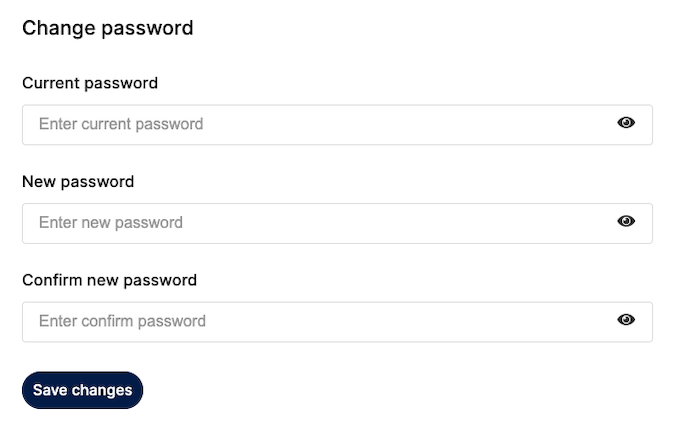
- Enter your current password.
- Enter the new password. (Use at least one uppercase, number, and special character combination to create a strong password (recommended)).
- Re-enter/confirm your new password.
- Click on “Save Changes”.
Delete Account
If you wish to deactivate or delete your account, you can find the “Deactivate Account” option in the “Settings” tab and proceed to do so.
However, it’s important to keep in mind that deactivating your account will make it inaccessible to you and you may lose all your profile data in the process.
To delete/deactivate your account please follow the given steps.
- Go to your settings tab. (Go to the dashboard, and on the left side menu select the settings tab. The second option, hover your profile in the header section and select the settings option).
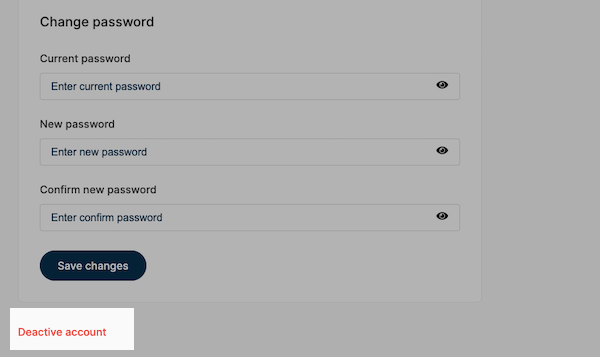
- Scroll down and find the “Deactivate account” option.
- Click on deactivate account.
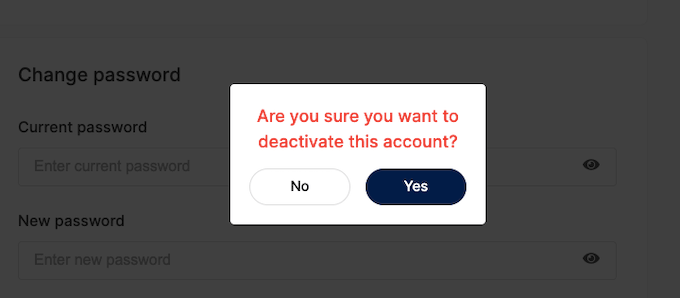
- A new popup window will open to confirm that are you sure to delete your account.
- Click on yes.
Your profile has been successfully deleted. After deleting a profile, you cannot restore it. If you want to use it again, you will have to create a new account.