

Textile job seekers can save jobs to their wishlist and manage them from a centralized dashboard through the textile job portal “Wishlist” feature. It helps candidates save their favourite job, compare multiple jobs, apply later, and apply from a single place.
In this tutorial, we guide you on how you can save a job in a wishlist and manage it from your dashboard on the textile job portal.
How to save a job in the Wishlist?
To save a job in your wishlist, you must log in to your account. If you have not created an account yet, we would like to refer you to a guide on how to create an account on the textile job portal.
Option 1
- Login account, and go to the main menu, click on jobs.

- You will be reached at the all jobs section.
- Here you can see the all listed jobs.
- You can find jobs using filters.
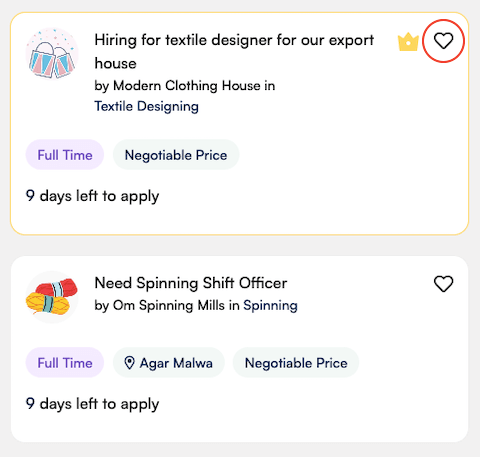
In the image below, you’ll find a heart icon. Click on it. Once the icon changes to filled, the job is saved in your wishlist successfully.
Option 2
To save a job to your wishlist, follow these steps:
- First, browse through the listed jobs and click on the one you want to save.
- On the right side of the page, you’ll see the complete job notification. In the header of the job notification, you’ll find a heart icon.
- Click on it.
- Once the icon is filled, the job will be saved to your wishlist successfully.

Option 3
To save a job to your wishlist, follow these steps:
- First, browse through the listed jobs and click on the one you want to save.
- Go to the single page of the job notification.
- In the header of the job notification, you’ll find a heart icon.
- Click on it.
- Once the icon is filled, the job will be saved to your wishlist successfully.

How to manage wishlist jobs from the dashboard?
Candidates can easily manage their job wishlist from the dashboard by following the steps below.
- Go to the dashboard
- Click on the “My Jobs” option from the left side main menu.
- You will be reached at the all jobs section you applied.
- Switch the tab to “Wishlist”.
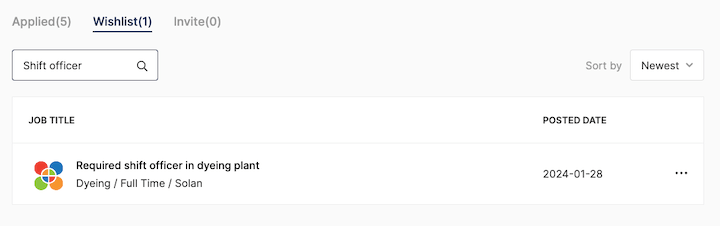
Here is a list of all the jobs you have saved in your wishlist, including the job title, department, job type, and location. You can also see the date the job was posted and more options.

Find a job using the search bar and sort by filter
If you have a long list of jobs saved in your wishlist, you can easily find a specific one by using the search bar and applying filters. Simply type in the job title or a relevant keyword in the search bar and press enter. You can also sort the jobs by date, either from the oldest to the newest or vice versa, by using the “Sort By” filter.
For example, In the below image, I searched for “Shift Officer” by typing it into the search bar and pressing enter.
Here is the result.
Delete a job from your wishlist
To delete a job from your wishlist, follow the below steps.
- Go to “My Jobs” from the main menu.
- Switch the tab to “Wishlist”
- You can see the all wishlist jobs.
- On the right side, you will find the three-dot option.
- Click on it, and press on the delete option.
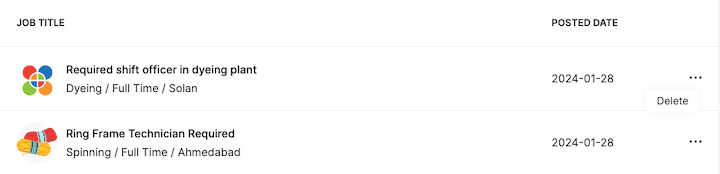
The company has been successfully removed from your wishlist. You can use this method to remove as many companies as you want.
I hope this tutorial finds you well. If you have any questions, feel free to leave them in the comment section below or contact us at company@textilejobportal.com.


