
The textile job portal offers a simple yet powerful support system where users can easily communicate with support agents through tickets. Users can create tickets via email as well as through the web portal with ease.
To reply to a ticket and track the timeline, users must have a support portal account. Existing customers can log in to their accounts and access the support dashboard.
For new users, we recommend this step-by-step guide on how to create an account on our support system.
Single ticket page
- Login to your account
- Go to the main menu and click on the tickets.

- You will be reached at the “All Tickets” page where you can manage your tickets.
- Click on the ticket card to open the conversation,

- When you click on a ticket, you will be directed to a page where you can manage that specific ticket.
- The other option is to go directly to the tickets page by clicking on the link provided at the bottom of every email, as shown in the image below.
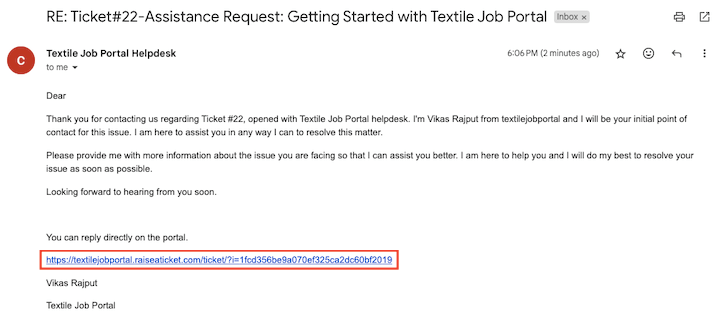
- Let me break it down for you. The single ticket page is divided into several sections. Let’s go through each section one by one to understand them better.
Quick taskbar
At the top of the page, you can see the quick taskbar section where you can perform the necessary action with a single click. Let’s understand one by one.
- At the top left-hand corner, you’ll notice the ticket ID that can be used to track all ticket processes. Next to it, there’s a refresh icon that you can click to refresh the page.
- You’ll see the star icon which can be used to bookmark the ticket. After that, you’ll find the reply option which is a shortcut to respond to the ticket.
- Click on the menu to see options for printing, exporting, and deleting the ticket. Lastly, you will see the previous and forward arrows to navigate between tickets.

Ticket header
When a user creates a support ticket, they need to fill in basic details such as ticket category, priority, group, subject, and description. This information will be displayed in the header section of the ticket along with the current status, the user’s name and profile image, the time the ticket was created, or the channel through which the ticket was created.

The first reply by the support agent
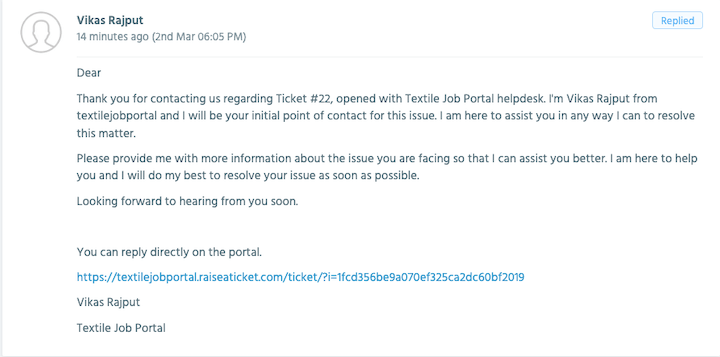
After submitting your ticket to the portal, the support team will review it and assign a support agent to assist you. You will receive an email confirmation from the agent containing all the details you provided earlier, as shown in the image below.
The first reply by the user
After receiving the confirmation email, users can access the ticket page by clicking on the link provided at the bottom of the email or by logging in to their support portal and navigating to the ticket page.
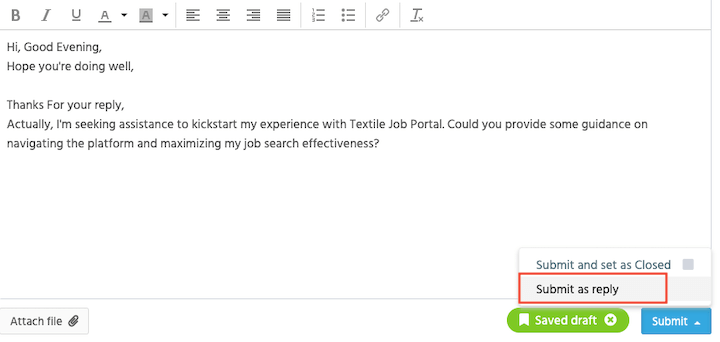
- To reply to the email, simply click on the “reply” button located below the last email in the thread.
- Enter your message in the content box and click on the “Submit” button.
- After submitting, you will be given two options – “submit and set to close” or “submit as a reply.”
“If your problem is resolved in the first email, you can choose the option “submit and set as closed”. If your problem is not resolved and you want to send a message to a support agent, you can choose “submit as reply”.”
You can now see your message in the conversation after successfully sending it to the support agent.
Similar tickets and department
You can find the section for similar tickets and departments on the right sidebar.
- If you have previously created a ticket that is the same or related, you can find it here by clicking on its title.
- When creating a ticket, the user can select whether it falls under candidate support or employer support.

Ticket summary
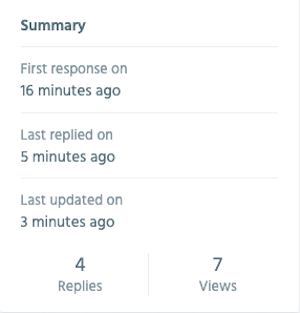
The ticket summary contains useful information which includes the following.
- When you receive the first response on your ticket
- You can view the last reply time and update time.
- Additionally, you can see the total number of replies and views on your ticket.
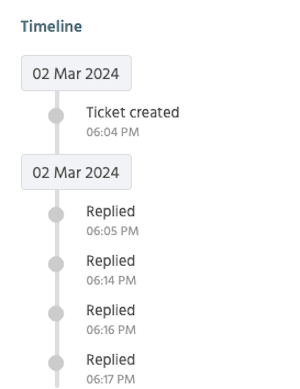
Ticket timelines
A ticket timeline helps you track the progress of your tickets, including when they were created, when you received a reply, and when your ticket was closed.
I hope you find this tutorial helpful for responding to tickets, checking for similar tickets, reviewing ticket summaries, and analyzing timelines. If you have any questions or queries, please feel free to leave them in the comment section. We are happy to assist you.