Users can find raised tickets on the textile job portal support platform by utilizing the various available filters and sort-by options. In this tutorial, we will guide you on using the filter and sort-by options on the support portal to manage your ticket list more efficiently.
If you are an existing user, kindly log in to your support dashboard and navigate to the “Manage Ticket” section. For new users, we recommend going through an article first on creating an account on the support portal as you currently do not have access to it.
Manage Tickets
- Login to your account and go to the All Tickets section by clicking on the “Tickets” option from the main menu.

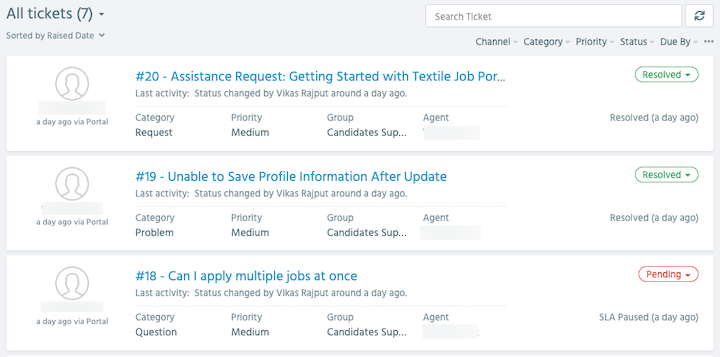
- You can view all your raised tickets in the All Tickets section, including their category, priority, current status, support agent, and ticket group.
Arrange Tickets by “Sort By”
On the ‘All Tickets’ page, you can find the ‘Sort By’ option located in the left corner. By default, it is set to ‘Sort by Raised Date.’ However, you can change it to a different option by clicking on it. For example, you can view recently updated tickets by selecting the ‘Recently Updated’ option.
Furthermore, you can sort your tickets in other ways, such as by ‘Replies.’ This will show the tickets with the highest number of replies first, sorted by ‘Views,’ which will show the tickets based on the highest number of views.
You can also sort your tickets by ‘Ticket Status.’ This will display the resolved tickets first, by ticket statuses. Additionally, you can sort your tickets by category, priority, and group.
Finally, to further customize your sorting options, you can choose to sort your tickets in either ascending or descending order.

Channel
Users have the option to filter support tickets based on the support channel through which they were raised, whether it be via the web portal or email. By selecting the desired option, the results will be displayed accordingly.
In a previous tutorial, we discussed the differences between web portal support and email channel support, as well as how to create support tickets using both channels.

Category
On the textile job portal support channel, users can filter their tickets by category. There are currently four categories available, i.e. incident, problem, question, and request.
When a user submits a ticket, they choose the most relevant category. From the dashboard, users can easily filter and find their tickets based on the category they selected.

Priority
Another important filter available is the priority filter. Users have the option to choose the priority level while creating a ticket. From the dashboard, they can easily filter and find the tickets based on their priority level.
To do this, simply click on the desired priority level to view the associated tickets. High-priority tickets will show up first.

Status
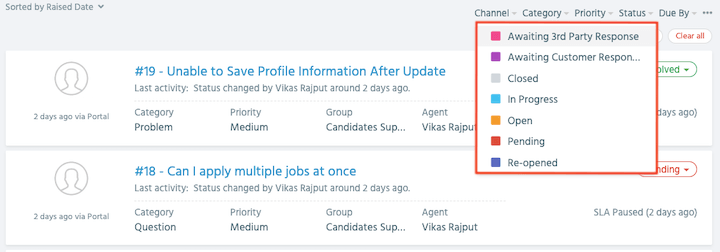
Users can sort tickets by current status, including open, closed, in progress, pending, and reopened.
Due By
The term “Ticket due by” refers to the deadline that a problem or request in a help desk system needs to be resolved or addressed. Users have the option to filter their tickets based on specific parameters such as overdue, due by today, tomorrow, or by selecting a custom date.

More Filter
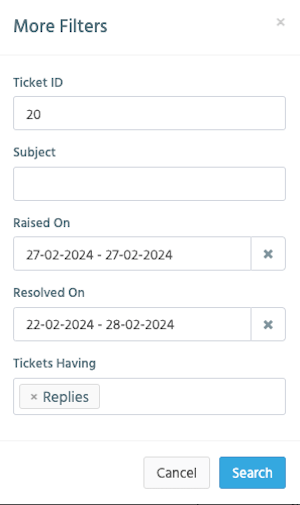
The last option is the three-dot menu. When the user clicks on it, a new “More Filters” popup window will open. In this window, users can find tickets using various filters such as “Ticket ID”, subject line, ticket raise date, ticket close date, and options to choose if the ticket has an attachment or only replies.
I hope this guide finds you well. If you have any questions, please let us know in the comments below. We are happy to assist you.