
The textile job portal offers a personalized support system for each client. They can manage and update their profiles by uploading profile pictures, first and last names, emails, time zones, email signatures, login authentications, etc.
In this tutorial, we will guide you through the process of updating your profile on the support portal. Additionally, we will provide instructions for deleting your profile.
Update Profile
To update the profile on the support portal, follow the given steps.
- Go to the support portal homepage by clicking on this link (click here to visit the support portal).
- Click on the “login” option from the main menu.
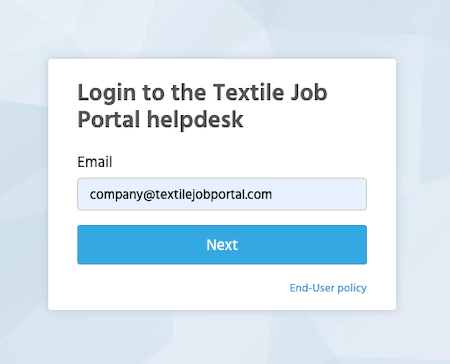
- A new popup window will open, enter your email address.
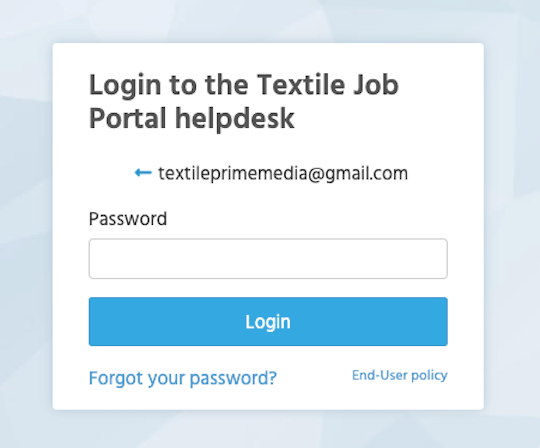
- Enter your password, and click on the login button.
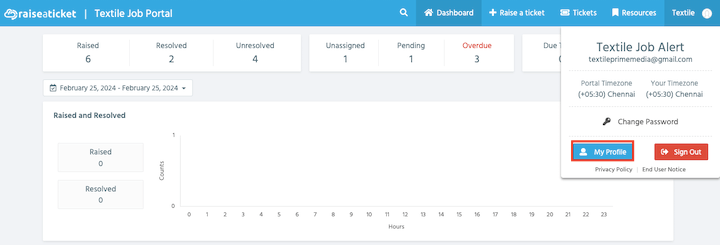
- Once you log in to your account, you will reach the support portal dashboard where you can access menus, reports, manage tickets, and other related tasks.
- Go to the right corner of the main menu and click on your profile.
- A new popup window will open, here you can see the option “My Profile”.
- Click on it.
- Once you click on the “My Profile” option you will be redirected to the profile page where you can edit and update your profile information.
Upload logo
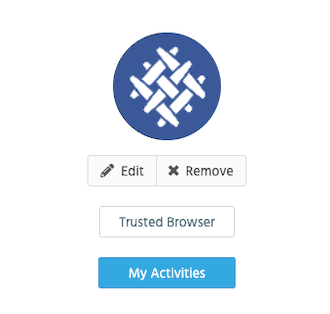
To upload a profile picture, click on the option located on the left side of the screen. Once you click on it, you’ll be able to choose an image and save it by clicking on “update profile”.
After saving the picture, you’ll have the option to edit or remove it by clicking on the respective buttons shown in the image below.
Basic Information
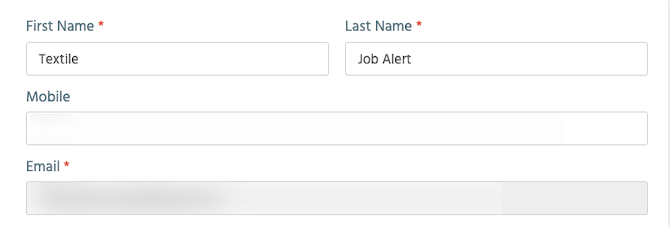
The next step is to edit or update the basic information such as your first name, last name, mobile number, and email address. This information is saved automatically when you create an account. However, if you want to change your first name, last name, or phone number, you can do it from this section.
Advance Settings
In the advanced settings, you can find three options: time zone, display ticket conversion, and multi-factor authentication.
Timezone
One of the important settings to send and receive emails, and notifications based on your country time is to set a timezone based on your country’s location. For India, you can set Chennai, Kolkata, Delhi, and Mumbai.
- To choose the time zone, click on the time zone option.
- A dropdown list will open, you can scroll and find the location or enter in the search box.
- Select the location and click on update.

Display ticket conversation
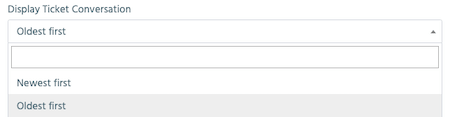
You can sort the ticket list by oldest or newest first.
Multifactor Authentication
When you enable multi-factor authentication, an additional security layer will be added to your login process. Currently, we only support Google Authenticator. You will need to download the Google Authenticator app from the Play Store to use this service.
- To enable the multi-factor authentication, turn it on.

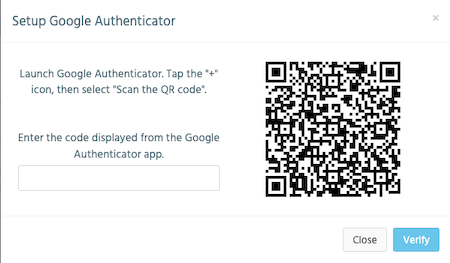
- The “Setup Google Authenticator” window will open.
- Open the Google Authenticator app on your mobile device.
- Click the “+” icon to add a new device.
- Choose the option to scan a QR code.
- Scan the QR code displayed in the “Setup Google Authenticator” window.
- Once scanned, the security code will be displayed on your device.
- Enter the security code in the verification box as shown in the image below.
- Click on the “Verify” button to complete the setup process.
Email Signature
Email signatures save time by automatically including a signature or address at the end of each email. To add a signature, follow the steps given below.
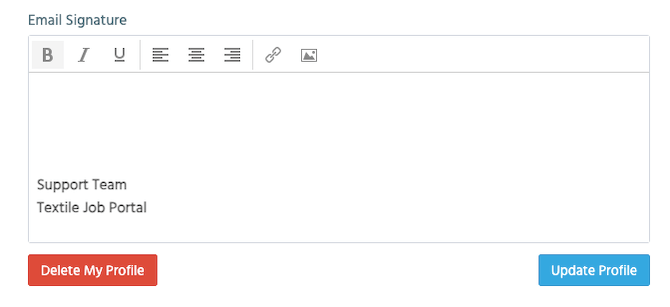
- In the content box, you can add your signature or upload an image by selecting the image option.
- You can format your signature by making it bold, italic, underlining and aligning it to left, right, or centre.
- Furthermore, the user can include a link or image within their signature.
- Once you have checked that all the information is accurate, click on the “update” button to confirm the changes.
Delete Profile
To delete a profile on the Textile support portal, users can follow the below steps.
- Go to the “My Profile” section and scroll down to the end of the page.
- You will find the “Delete My Profile” option, Click on it.

- A new popup window will open.
- Click on “Yes”.
- Your profile has been successfully deleted from the support portal within 30 days.
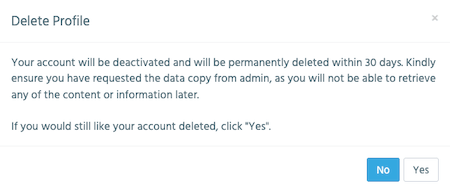
If you decide to delete your profile, please note that your account will be permanently deleted and you will not be able to retrieve any content or information.
I hope this guide finds you well. If you have any questions, please leave them in the comment section. We are happy to help you.