
Users can change or reset their password if they forgot it on the textile job portal support system and set a new one. This tutorial will guide you on how to reset your password using the “forgot password” option or change it from your profile.
Forgot password
If you have forgotten your password, follow the steps provided to reset and create a new password.
- Click on this link (click here to visit the support portal homepage)to go to the support portal home page or click on “create a ticket” from the footer section of the textile job portal.
- You will be reached at the support portal homepage.
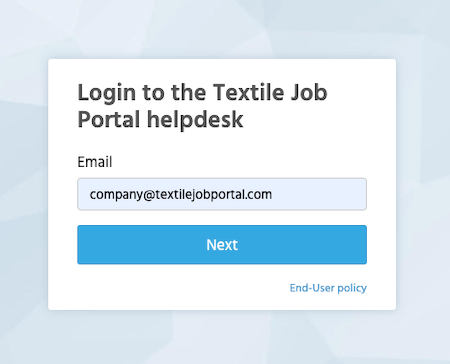
- By default, a login form will appear. If it doesn’t, click on the login option in the header menu.

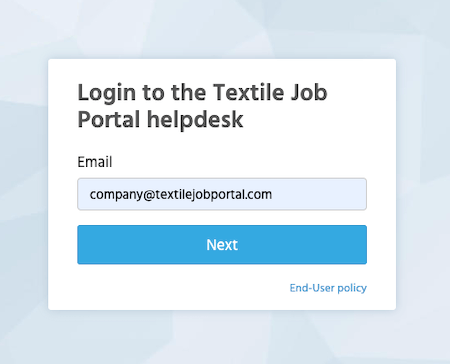
- Enter your registered email address and click on next.
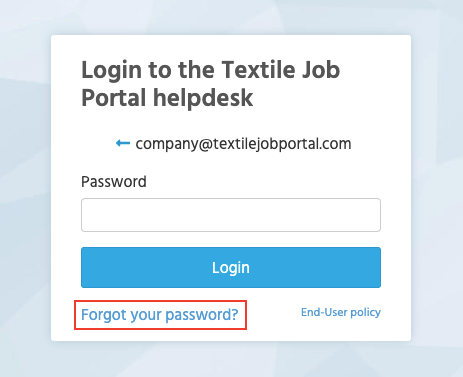
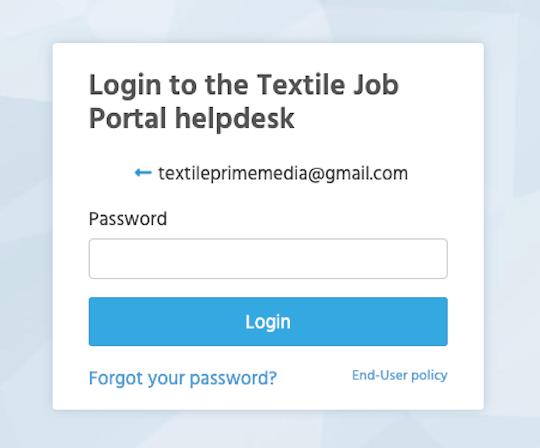
- To log in, you need to enter a password. However, if you forgot your password, you can click on “Forgot your password”.
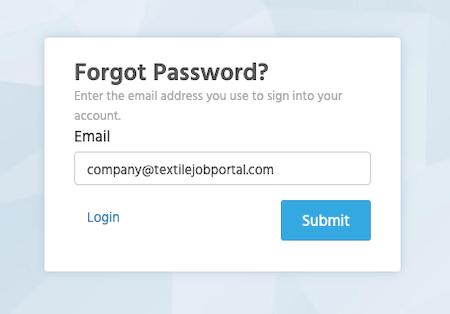
- A new window will appear, enter your registered email to receive a password reset link.
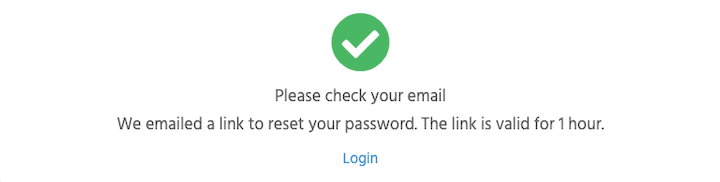
- We will send a password reset link to your registered email address. You will receive a notification as shown in the image below. Please note that this link will only be valid for the next hour from the time you submit the request.
- Go your mailbox you will receive an email in your mailbox from the “textile job portal helpdesk” as shown in the image below, you can reset your password by clicking the “Click Here” button.
- In case you have not received an email, please check your spam folder.
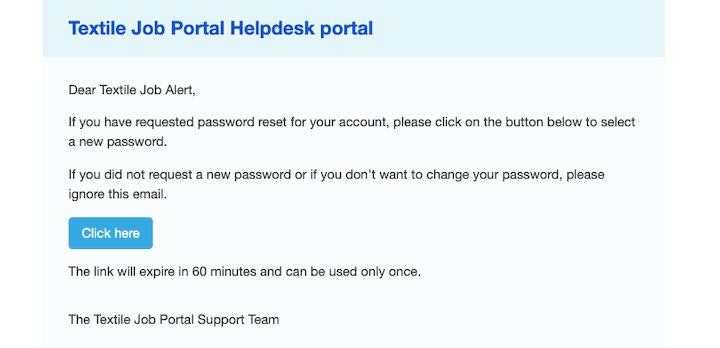
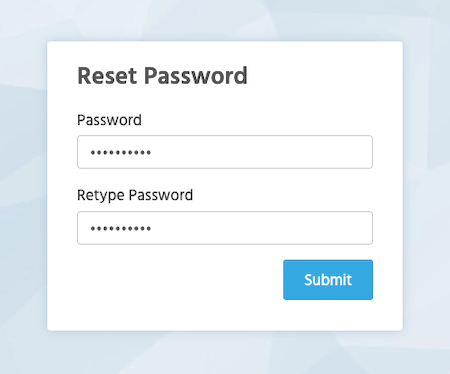
- After clicking on the button to reset your password, you will be redirected to a new page where you can change your password.
- A new window will appear where you need to enter your new password, retype it for confirmation, and then click on the “Submit” button.
- Once your password is successfully changed, you will be redirected to your support portal dashboard.
- To create a strong password, use a combination of uppercase and lowercase letters, numbers, and special characters, and make sure it is a minimum of 8 characters long.
Change your existing password
If you want to change your password even if you remember it, follow these steps below.
- Click on this link (click here to visit the support portal homepage)to go to the support portal home page or click on “create a ticket” from the footer section of the textile job portal.
- You will be reached at the support portal homepage.
- By default, a login form will appear. If it doesn’t, click on the login option in the header menu.

- Enter your registered email address and click on next.
- Enter your password, and click on the “Login” button.
- Once you log in to your account, you will be taken to the support portal dashboard. From there, you’ll be able to access the main menu and view statistics, reports, tickets, and recent activities.
- In the main header menu, you’ll see your account name along with your profile picture.
- Click on it to open a new window where you can see the option to “change your password”.
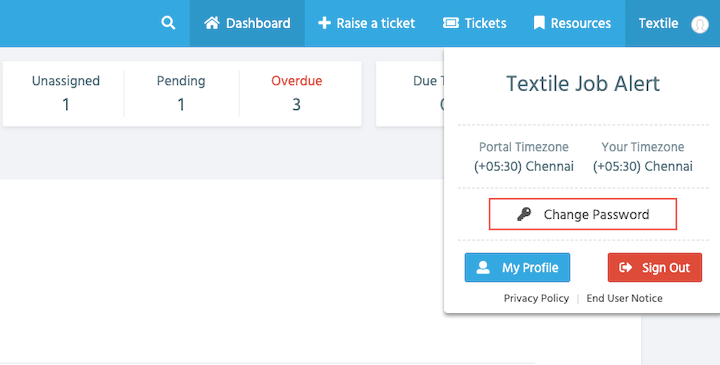
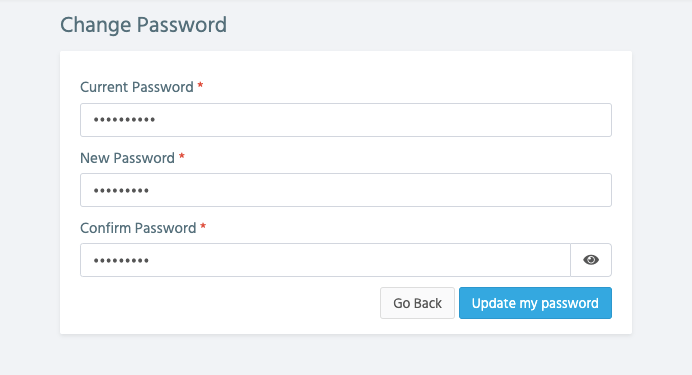
- After selecting the “change password” option, you will be redirected to a page where you can set a new password.
- Enter your current password, and new password, and confirm the new password.
- Click on “update my password”.
- Your password will be successfully changed and you can verify this by logging out and logging back in with your new password.
I hope this guide finds you well. If you have any questions, please leave them in the comment section. We are happy to help you.