
At Textile Job Portal, we offer our clients a simple yet robust support system. Through our platform, clients can easily create and manage tickets, streamlining the process of addressing their queries and concerns.
With just a few clicks, users can submit assistance tickets, track their progress, and receive timely updates on resolutions. Our user-friendly interface ensures that navigating the support system is intuitive and hassle-free, empowering our clients to access the assistance they need efficiently.
To create a ticket on the Textile Job Portal support system, we recommend that you first create an account on the support portal. This will give you a better experience and freedom to manage your tickets with ease.
Although users can also create and submit a ticket without creating an account, but, we highly recommend that you create an account for the best support experience.
Here is the complete tutorial on “How to create a support portal account on the textile job portal”.
In this tutorial, we will discuss how users can create and submit a new ticket on the textile job portal help centre.
Create a support ticket
To create a new ticket on the support portal, follow the steps given below.
- Go to the textile job portal website, and scroll down to the footer.
- You can see the “Help Centre” section.
- Click on the “Create Ticket” option.
In addition to clicking here, users can also visit the textile job portal support system by using this link to access the support portal. Click here

- You will be reached at the support portal homepage.
- Go to the main menu on the right side of the header.
- Click on “Login”

- Enter your registered email address.
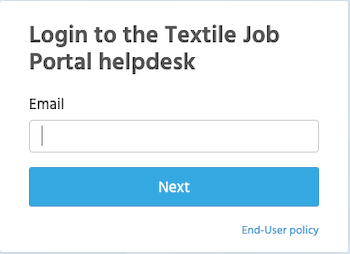
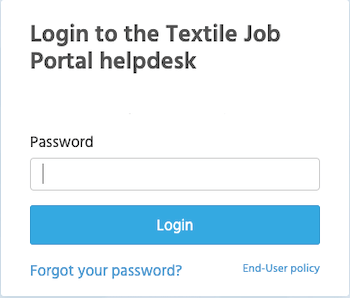
- Enter the password, and click on the Login button.
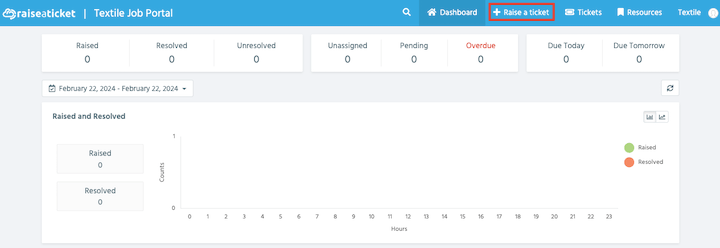
Once you click the login button, you will be redirected to the dashboard where you can manage and create support tickets.
- To create a new ticket, click on “Raise a Ticket” from the main menu.
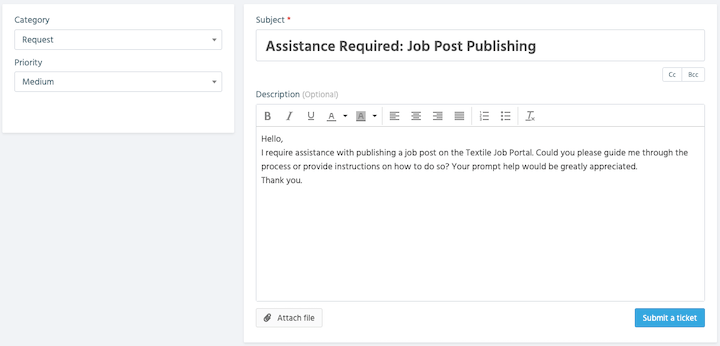
- You will be reached at the “Create Ticket” page.
- Select category. (We categorize tickets into four types such as incident, problem, request, and question).
- Select priority. (Priority defines the level of urgency: low, medium, high, or urgent.)
- Enter your subject line. (Subject line summarizing the issue you need assistance with.)
- Provide detailed information about your problem in the description to help us better understand and provide appropriate solutions.
- If you have a screenshot, image, or any media, you can attach it in the file attachment.
- Click on the “Submit a Ticket” Button.
- Your ticket has been successfully raised. You will receive a popup notification on your screen, along with an email in your inbox containing your ticket ID and other details. The ticket ID will help you track your ticket and follow up as needed.
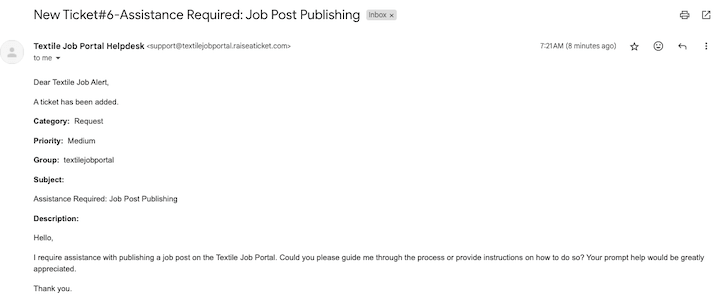
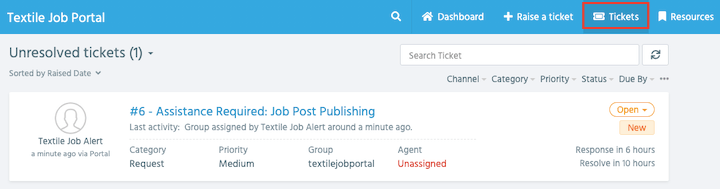
You can access and manage your tickets by clicking on “Tickets” in the main menu. Refer to our tutorial for assistance in managing and following up on your tickets.
How to create a ticket without login or creating an account
Users can create a ticket on the support portal without logging in or creating an account. However, the user will only receive email updates and will not be able to view, manage, or access the dashboard.
To create a ticket without creating an account, follow the given steps.
- Go to the textile job portal support system by using this link. Click here
- You will be reached at the support homepage.
- From the main menu, click on “Create Ticket”

- A new window will open.
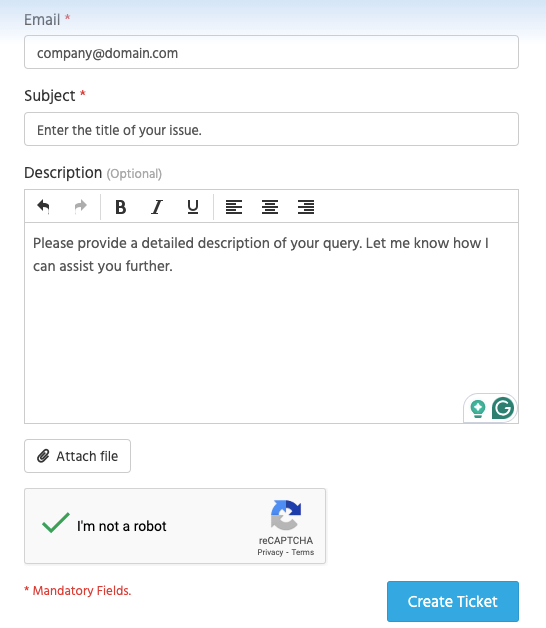
- Enter the email address where you would like to receive responses related to your ticket.
- Enter your subject line. (Subject line summarizing the issue you need assistance with.)
- Provide detailed information about your problem in the description to help us better understand and provide appropriate solutions.
- If you have a screenshot, image, or any media, you can attach it in the file attachment.
- Click on the “Submit a Ticket” Button.
Your ticket has been successfully raised. You will receive a popup notification on your screen, along with an email in your inbox containing your ticket ID and other details. The ticket ID will help you track your ticket and follow up as needed.
I hope this tutorial finds you well. If you have any questions, please get in touch with us at company@textilejobportal.com. We are happy to help you.