
Textile Job Portal offers a distinct job section on the dashboard that enables you to modify your job post, temporarily halt it, highlight it, mark it as filled, and view all the job details.
To manage your job listings, you can follow the simple steps mentioned below.
- Login to your account and visit the admin dashboard.
- On the left sidebar, click on the jobs tab.
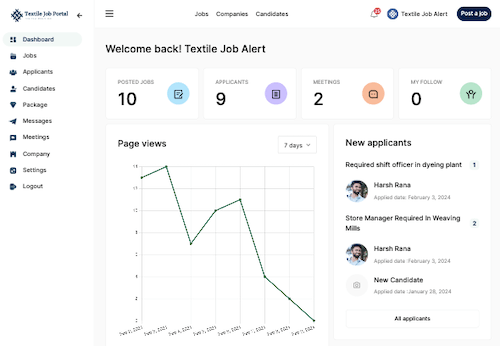
Once you click on the Jobs tab, you will be directed to the All Jobs page where you can view all your posted jobs. If you post a lot of jobs and find any old ones to repost or for any other purpose, you can do it by using the three main filters such as a dropdown, a search box, and a sort-by option.
Dropdown Filter
It’s helpful to organize job listings by status, such as open, paused, closed, or pending approval.
When a job is marked as “open”, it means that the job is currently available and applicants can submit their applications for consideration.
On the other hand, when a job is marked as “paused”, it means that you have temporarily suspended it, but you can resume it at any time.
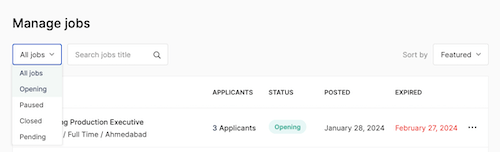
if a job is marked as “pending”, it means that the job post is still under review by the team. Once it has been reviewed and approved, it will be marked as “open” and candidates will be able to apply.
Finally, If a job is marked as “closed”, it means that the deadline for submitting applications has passed, and no further applications will be accepted.
Search Job Title
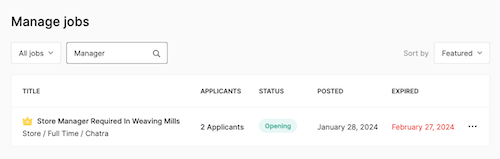
It helps to search old jobs by job title, enter the job title and click on the search button. Related jobs will appear. You can search by entering a job title or a single keyword.
As shown in the below image, we searched for the manager keyword and the related job appeared.
Sort By
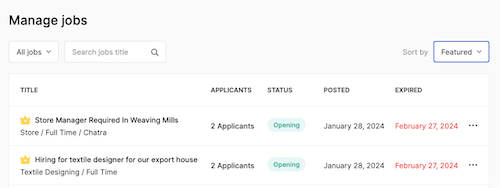
The sort-by filter helps to organize and display job listings based on date, including oldest to newest, newest to oldest, and featured.
As shown in the below image, we set the filter at featured and the related job appeared. With the help of all these filters, you can choose any post, edit it, open it, pause it, mark it as filled, and mark it as featured.
Listing Metadata
This is the section where all the posted jobs are visible, you can see such as post title, job type, and location. You can easily track the number of job applicants, job posting date, job expiring date, and status (open or closed) of your posted jobs.
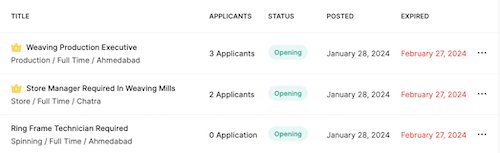
How to edit, pause, mark filled, and mark featured the job?
Click on the three dots on the right side and select an option from the list that appears, such as edit, pause, mark as filled, or view details.
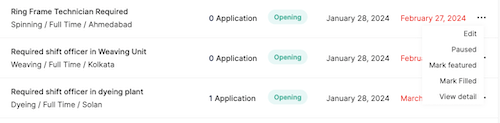
Let us understand one by one.
- Edit: after publishing the job post, if you want to make some changes, then you can do so by clicking on the edit option. After making changes, click on the “update button”.
- Paused: If you want to temporarily remove or make offline the job listing from the archive page, click on the pause button. You can live it anytime by clicking on the continue button.
- Mark Feature: You can change the normal job post to the featured job by clicking on the mark “Mark Featured” option.
- Mark Filled: If you have hired the candidate before the given job live duration, then you can mark the job as expired/filled by clicking on the “Mark Filled” option.
- View Detail: In this option, you can view your job post on a single page.