
When you sign up for the Textile Job Portal website, it’s important to make sure your profile is set up in a way that makes it easy for companies to find you. This means you should include information about your textile industry experience and skills. By doing this, you increase your chances of being noticed by potential employers.
You can optimize your profile as following
Basic Information
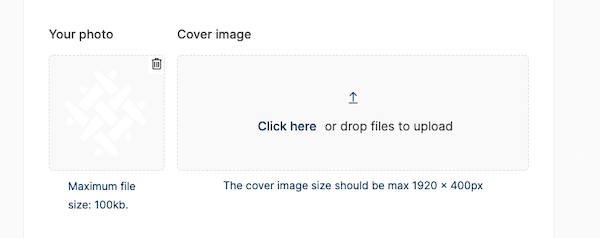
In the “Basic Information” section, candidates need to upload a profile picture that is smaller than 100 KB. They also need to provide important information such as their first name, last name, email address, category, mobile number, current job position, date of birth, education, years of work experience, expected salary, and location.
You can do the same by following the steps.
- Upload your latest profile & cover image that is smaller than 100KB
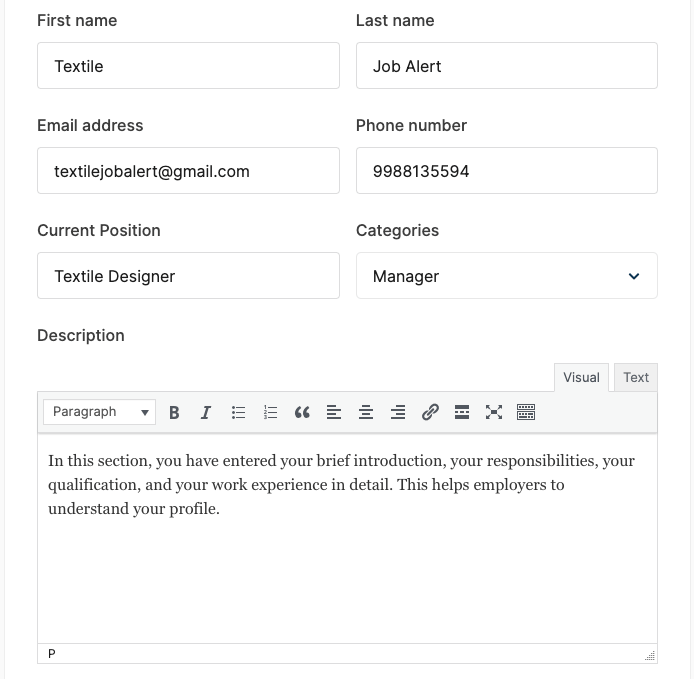
- After that, you need to enter your first name, last name, email address, phone number, current position, career level (category), and description.
- In the description, you are free to write about yourself in detail such as from your education to training, hometown to the current location, work experience and responsibilities, nature of duties, etc.
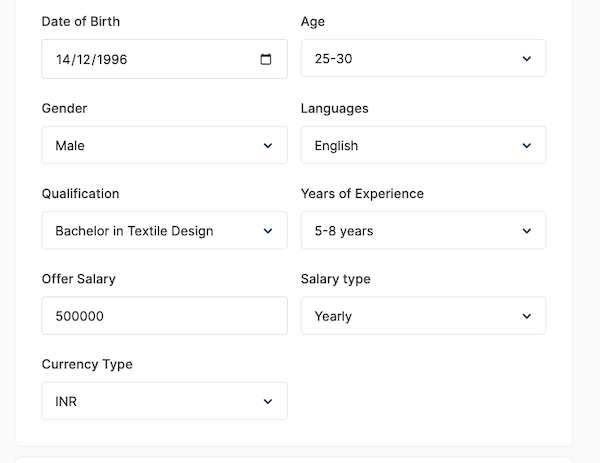
- Further, you have to enter your date of birth, age, gender, language, qualification, years of experience, expected salary as well as the currency type.
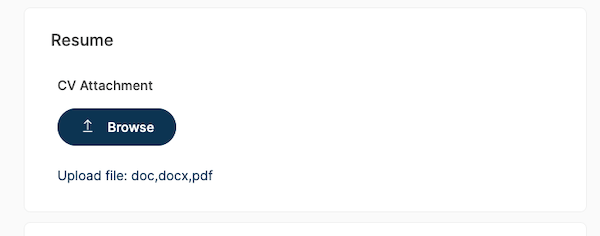
- Next is the CV attachment. here you have to attach your updated resume.
- Textile Job Portal also offers a feature called “Print Profile” that helps to create a simple but effective resume based on your profile. You can save it in a PDF format and upload it here.
- You need to upload your resume only once and whenever you apply for a job, your resume will be automatically fetched and sent to the employer.
- If you do not attach the resume here, then you will have to upload it every time whenever you apply for a job.
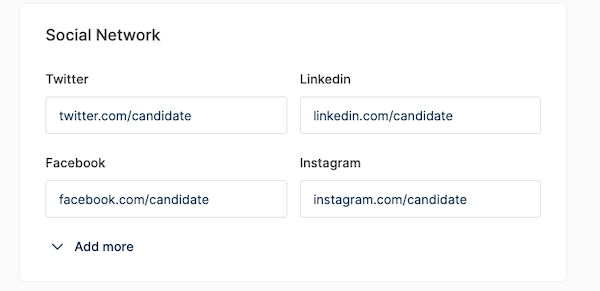
- Add your social profile links. Having social links can be beneficial in strengthening your network and connections. Additionally, it can also help in building your authority and trust within your industry.
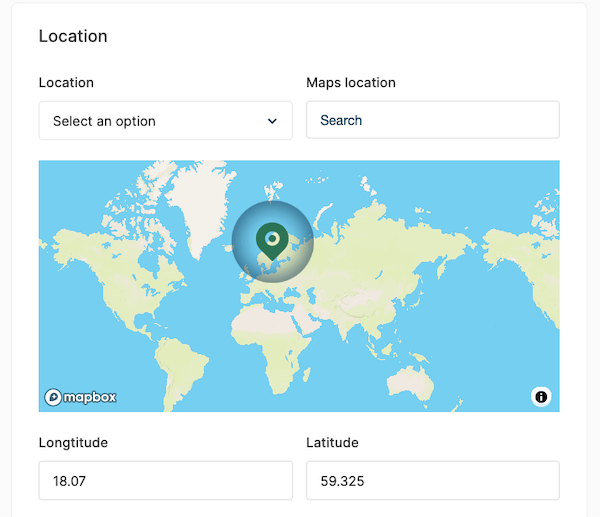
- Select your location.
After filling in all the information, click on the publish button.
Educational Qualifications
In the educational qualification section, you have to enter your qualification details. You can add as many qualifications as you have.
Follow the steps given below to add your educational qualification details.
- In the title, you can write your qualification title, for example, diploma in Textile Technology, Bachelor’s in Textile Chemistry, Master’s in Technical Textile, etc.
- Next, level of education i.e. high school, senior secondary, ITI, diploma, degree, master, Ph.D., etc.
- Enter the date from when you completed your study.
- In the description box, you can provide details regarding your educational background, including your career, industrial training, major topics, learnings, skills, and other relevant information.
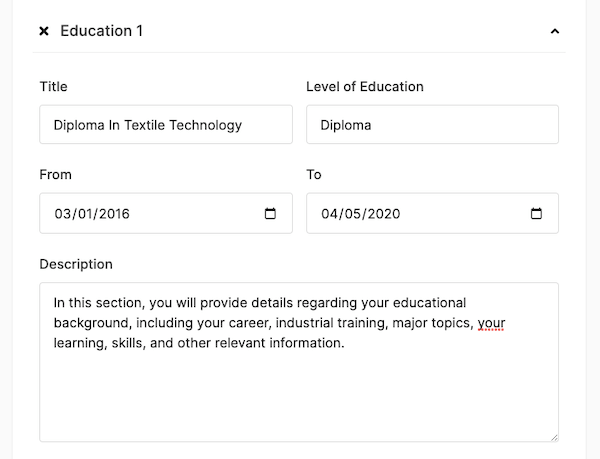
In this way, you can add as many educational qualifications as you want.
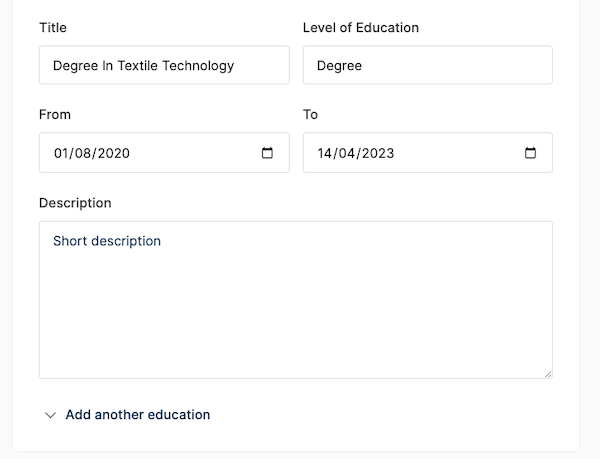
After filling in all the information, click on the publish button.
Work Experience
Enter your experience, in which company you have worked, designation, joining or exit dates, your responsibilities, your achievements, etc.
- Enter your job title, company name, joining and exit date, and job description.
- In the job description, you can share your profile and responsibilities in brief.
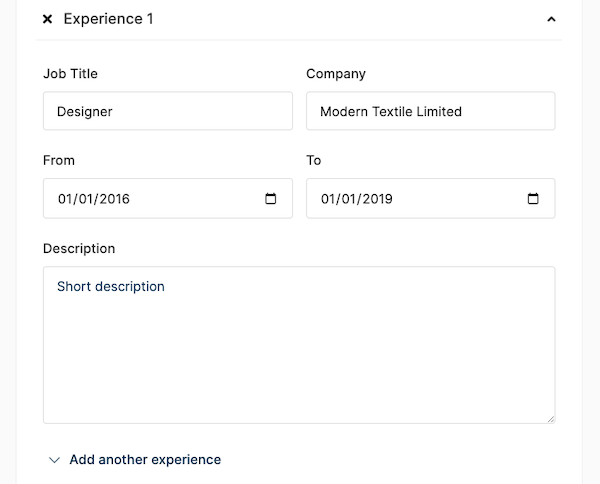
- In the same way, you can add your second work experience.
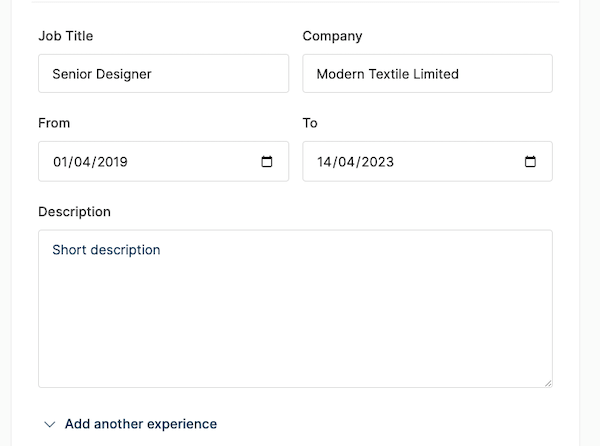
As with education qualifications, you can add as much as work experience you have. After filling in all the information, click on the publish button.
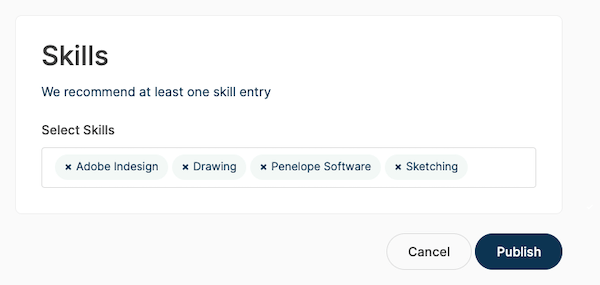
Skills
Add your skills from the dropdown list, and click on the publish button.
Projects
If you have done work on any relevant projects during your training or in your work experience, then you can add them as given below.
- Upload project logo
- Enter your project title
- Copy & paste the project link
- Enter the project description
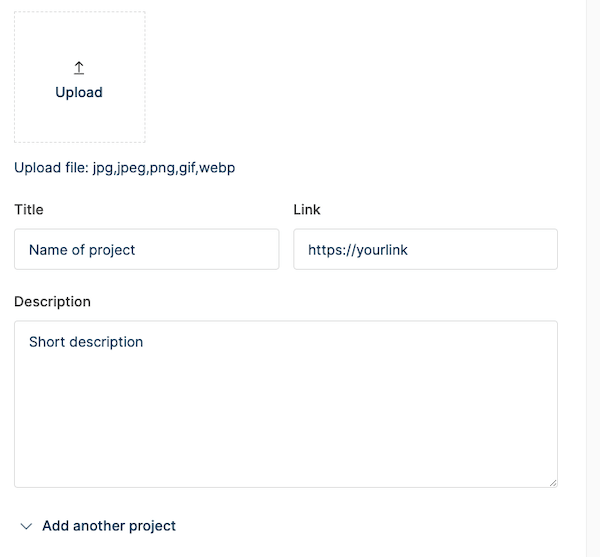
You can add as more as the project you want. It will help to increase your authority.
After filling in all the information, click on the publish button.
Awards
Here, you can add awards
- Enter your award name i.e. best employee, best team leader, etc.
- Award date
- Add a description
- Click on Publish
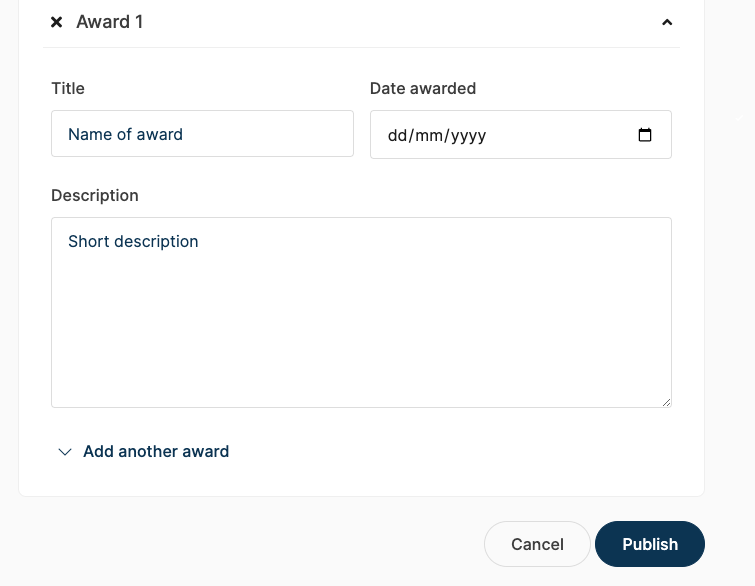
You can add as many as award you have.